Do it step by step.
Everyday jobs in Galley, each with the screens you’ll see. Keep one open beside the app.
Rather look around first? The demo is the real app on a sample site, in your browser — nothing is saved. Open the demo
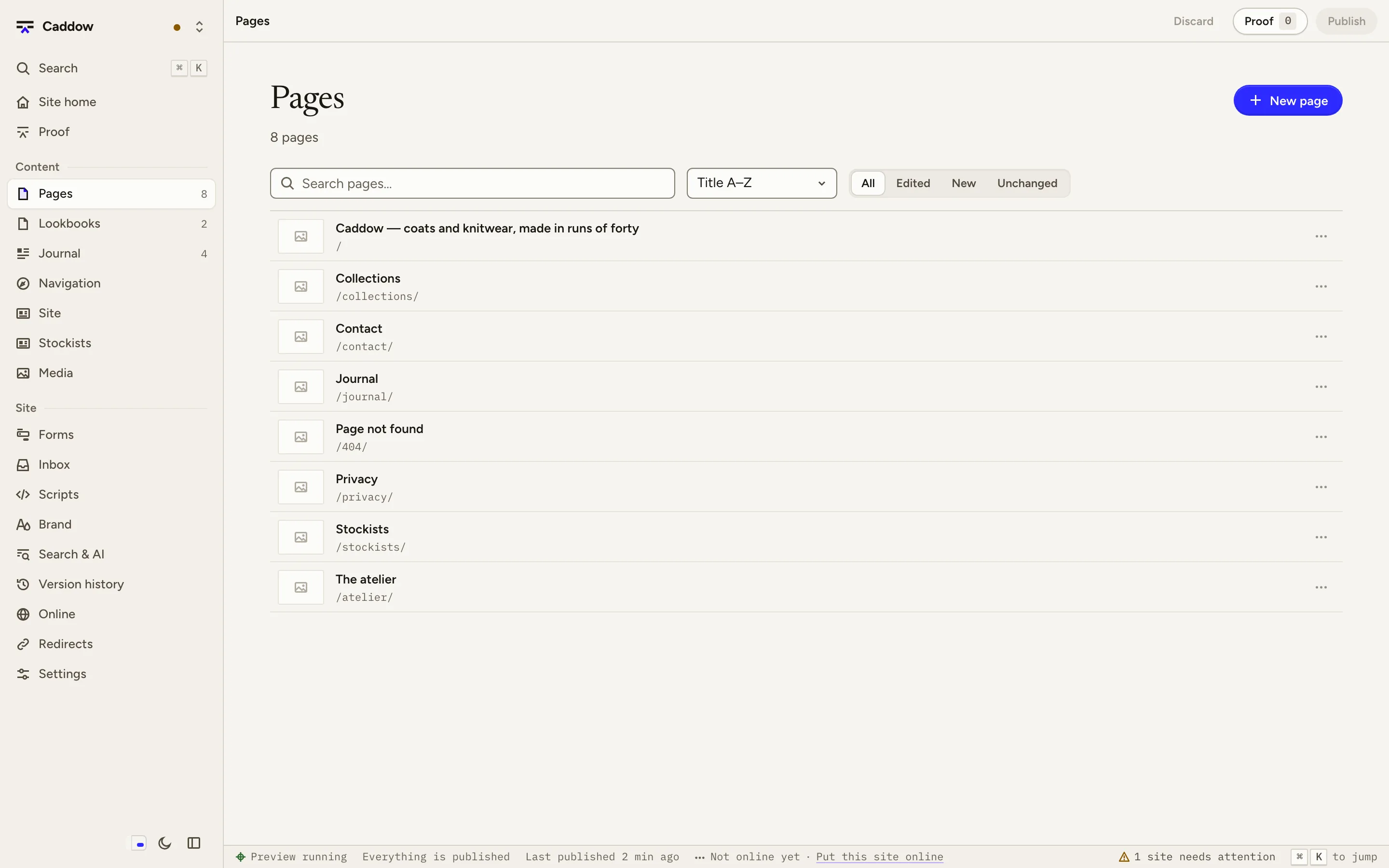
Change a page in the form
Retype any words on a page in its form and see the change on the page before anyone else does.
4 steps
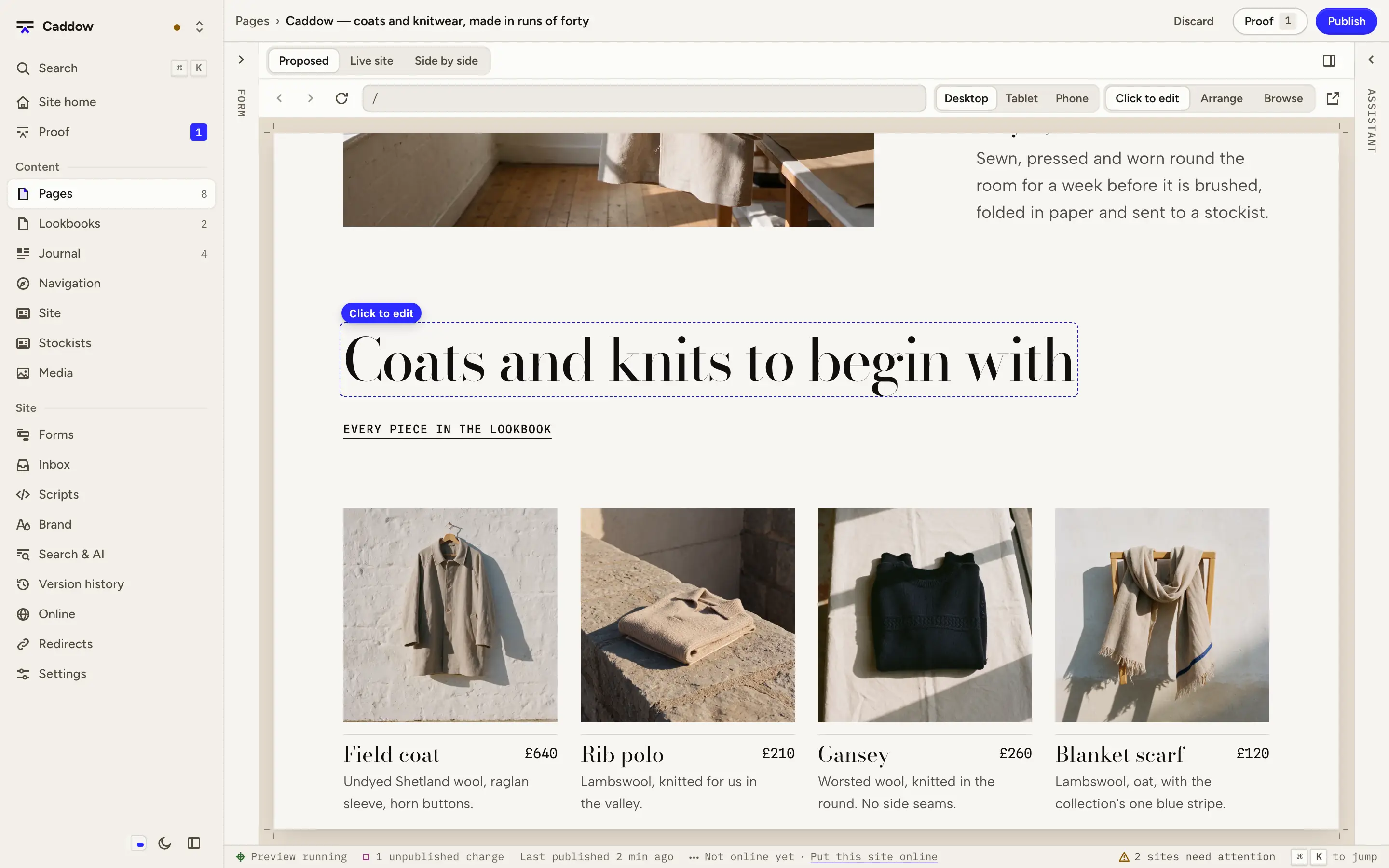
Change text on the page
Click the words on the page itself and type over them, without hunting for the right field.
4 steps
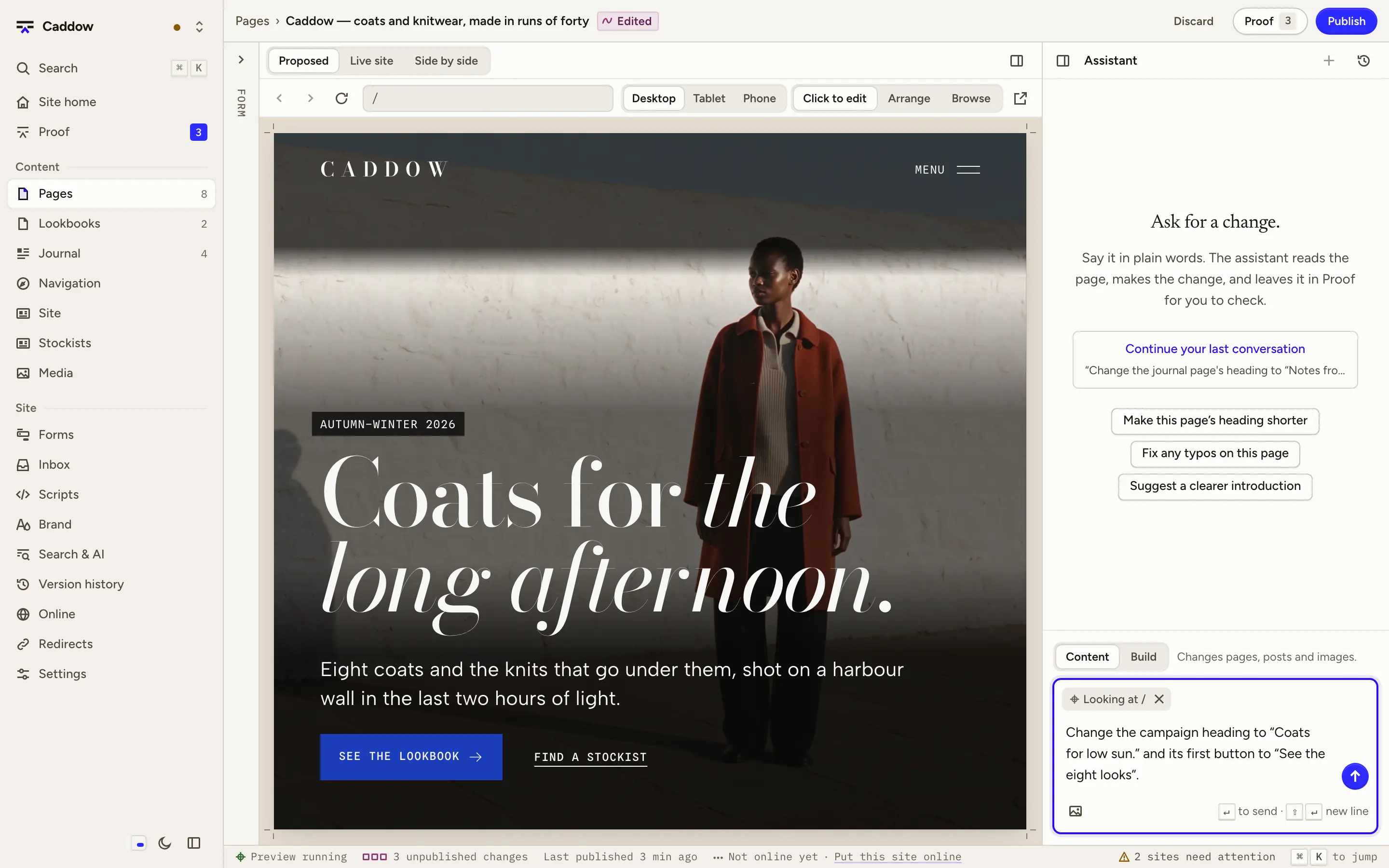
Ask the assistant for a change
Say what you want in plain words; the assistant makes the change and tells you exactly what it did.
3 steps
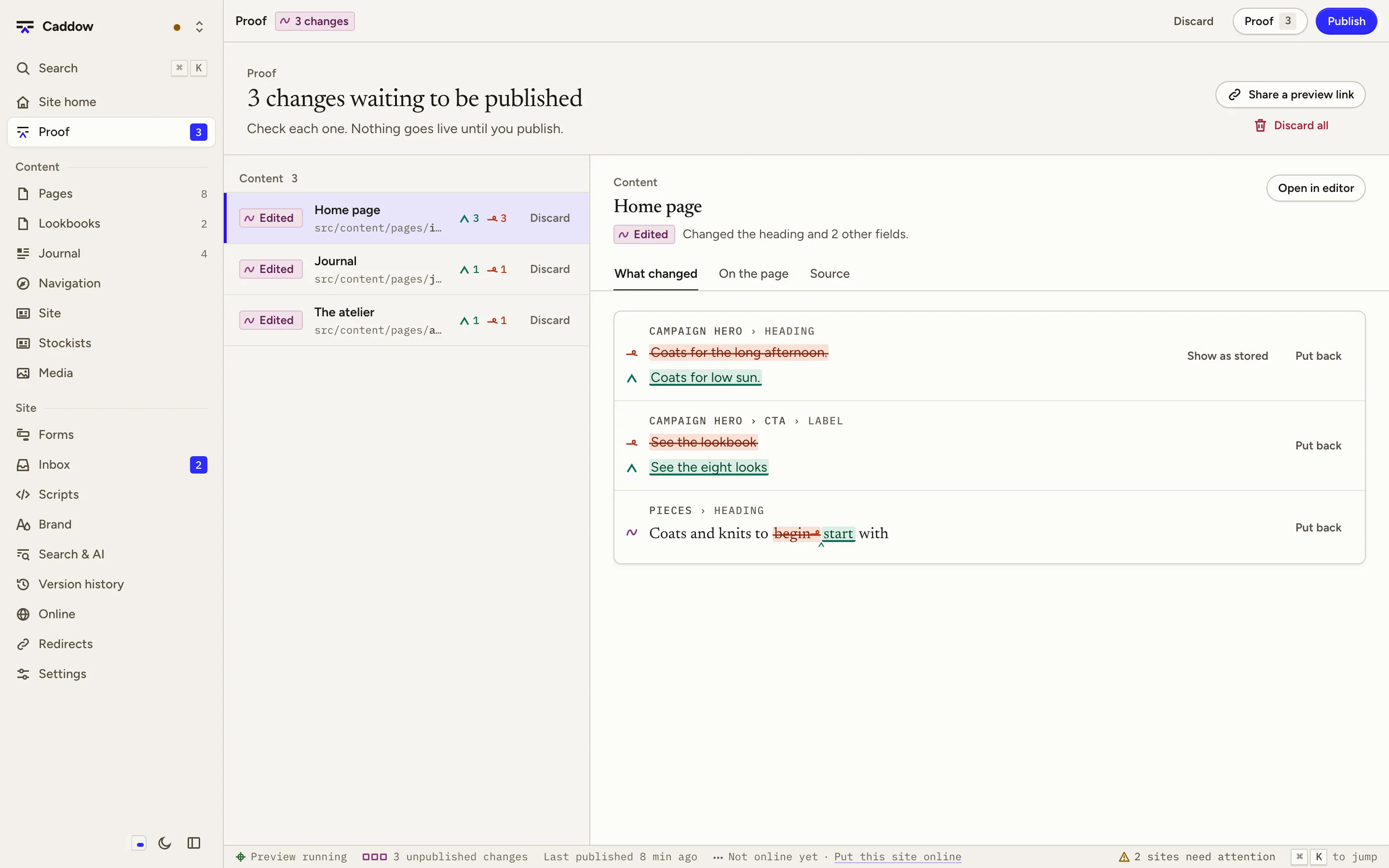
Check, publish and undo
See every change before it goes live, keep only the ones you want, and take a publish back if you need to.
5 steps
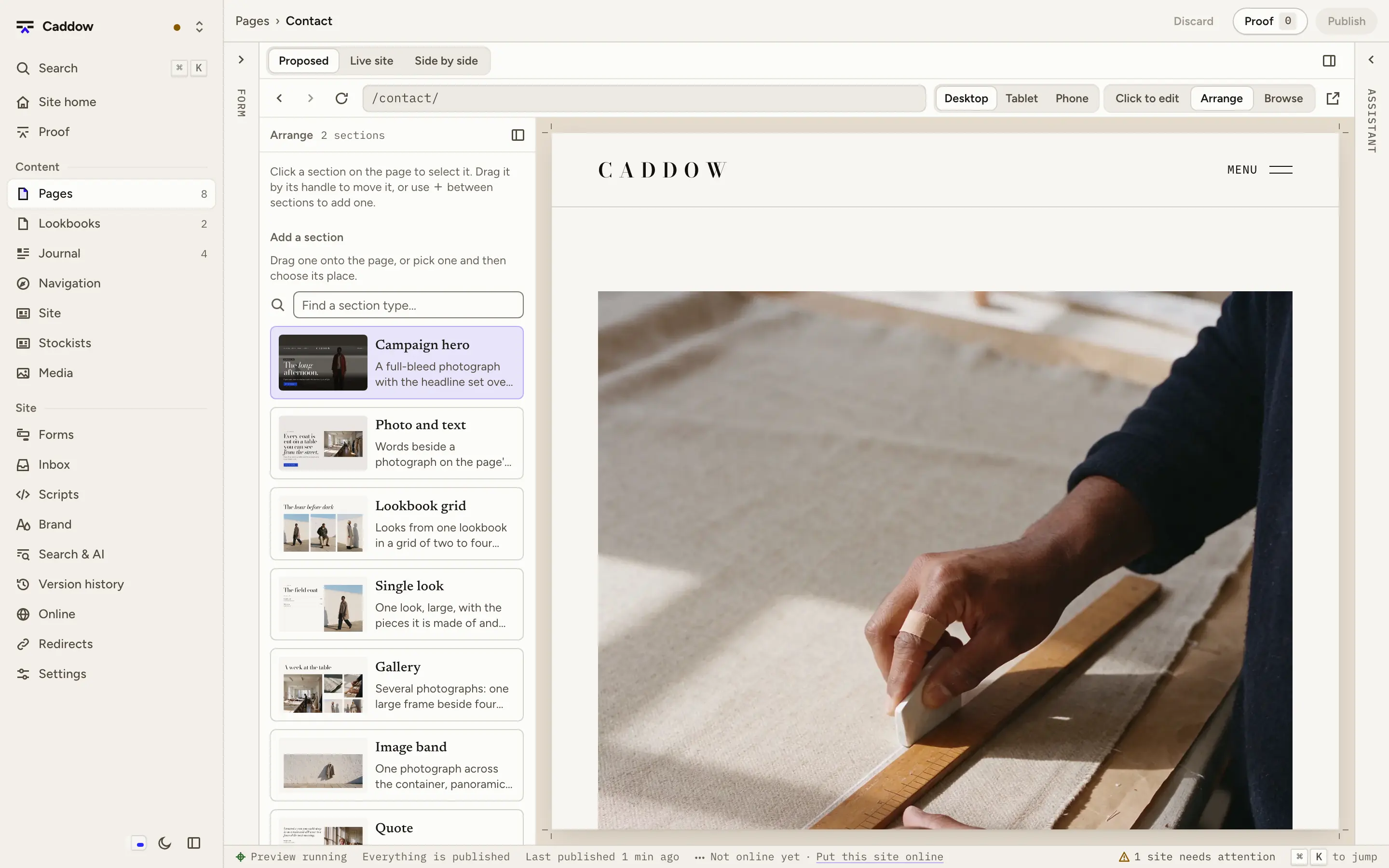
Build a page from sections
Put a page together from the site's own sections, on the page itself.
4 steps
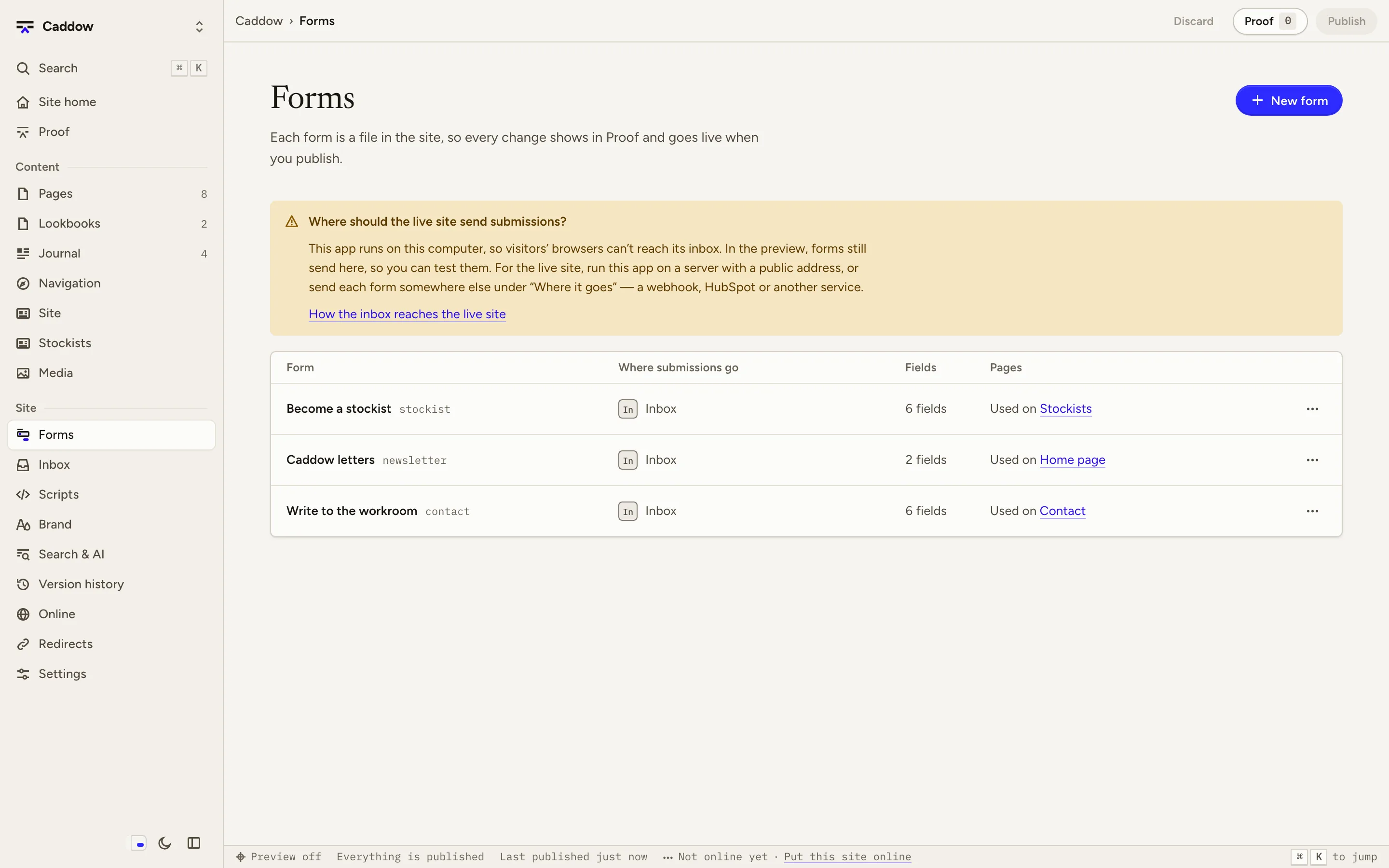
Make a form and read the answers
Change a form's fields, choose where the answers go, and read them in the Inbox.
4 steps
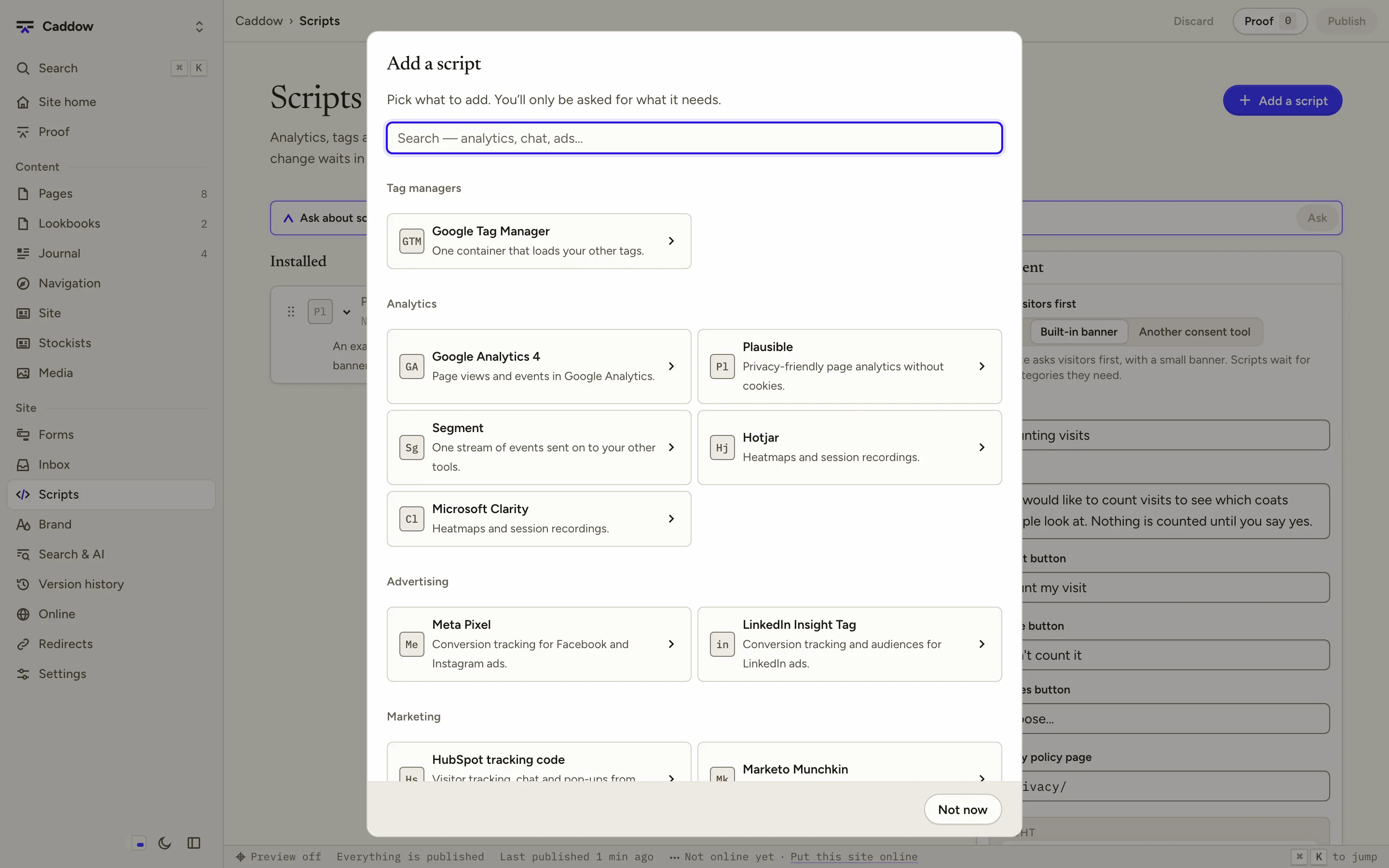
Add Google Analytics
Count visits with Google Analytics 4, loaded only once visitors agree to it.
4 steps
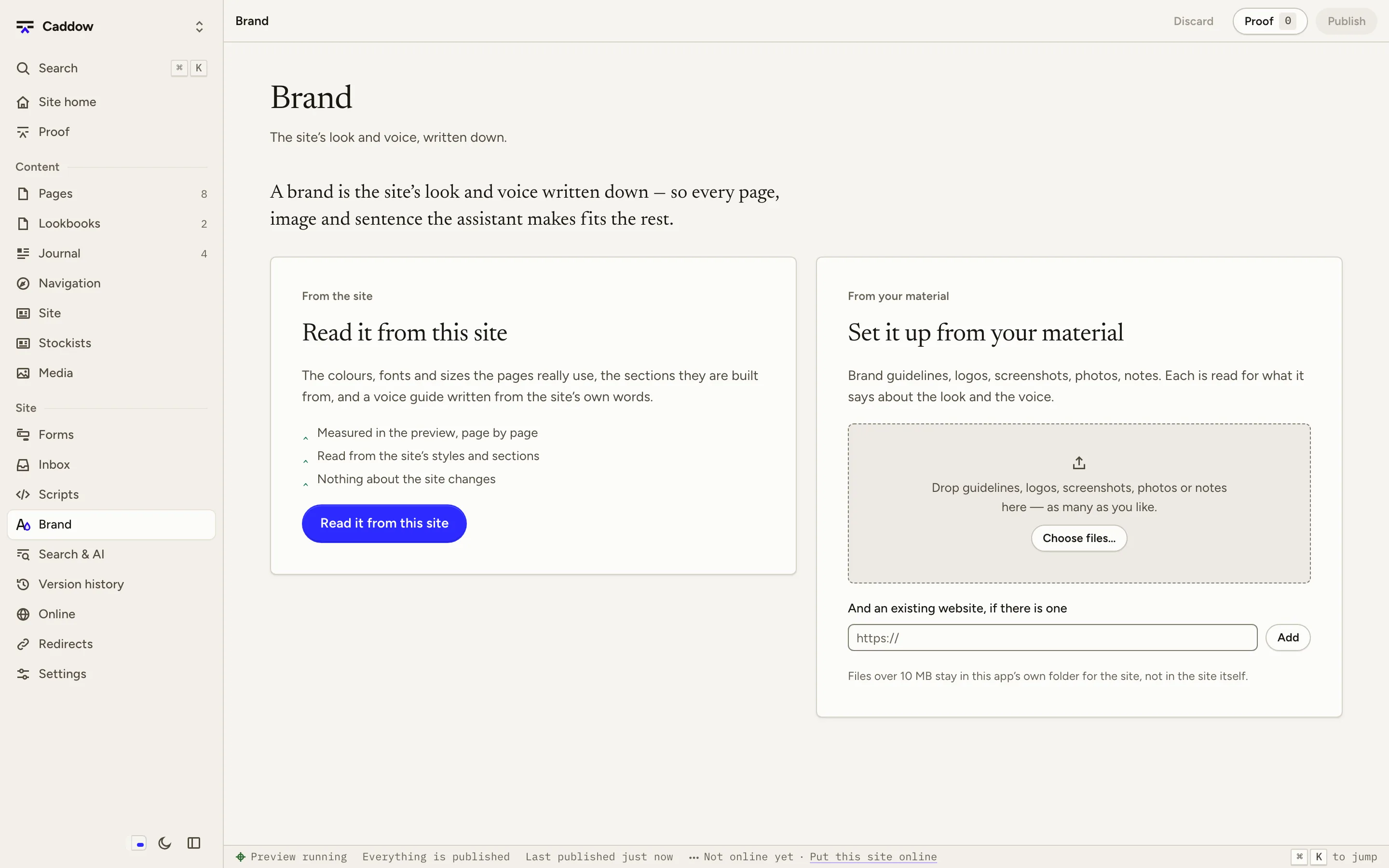
Set up the brand
Write the site's colours, type and voice down once, so every change fits the rest.
5 steps
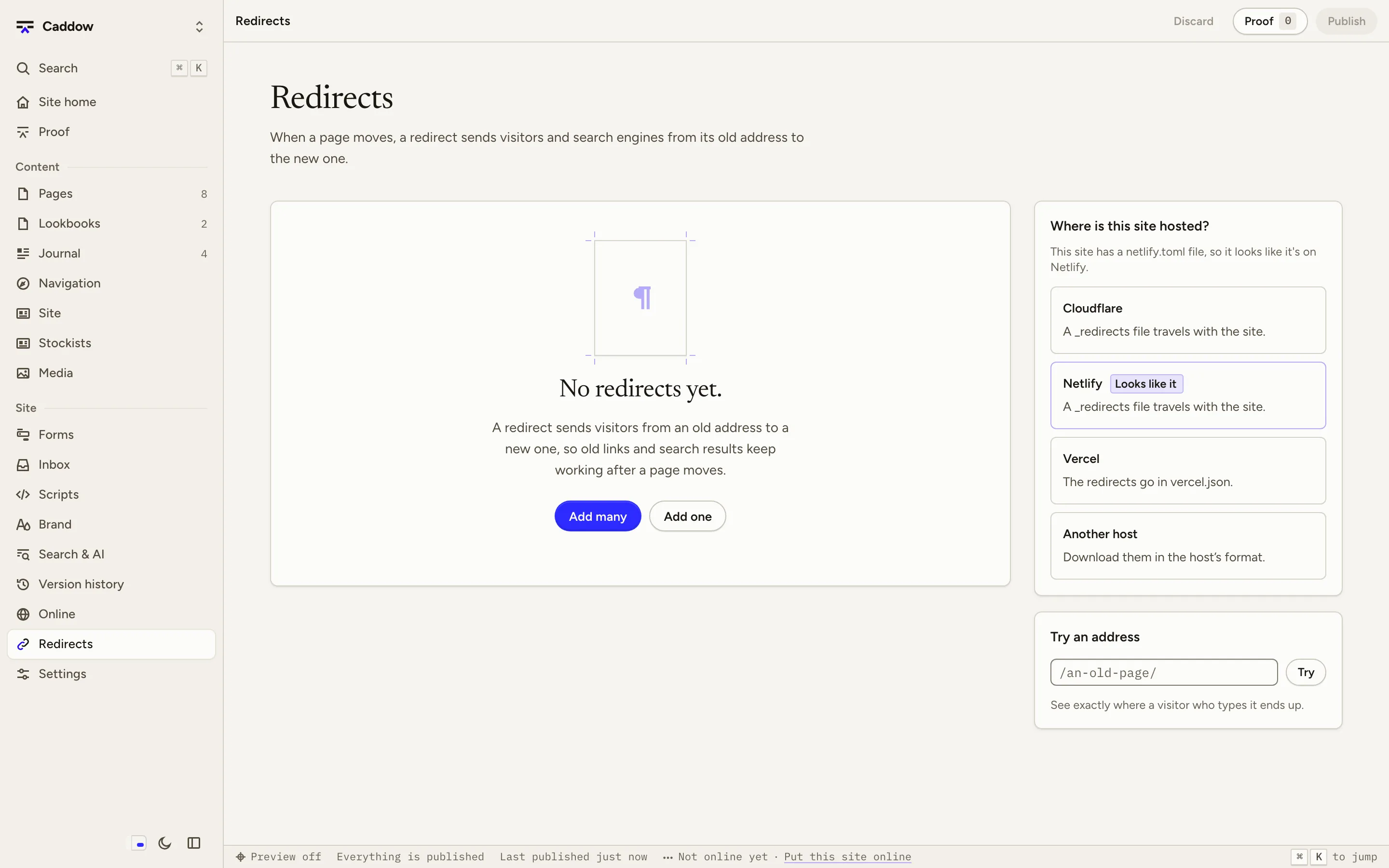
Add many redirects at once
Paste a whole list of old addresses and let the checks catch the mistakes before any visitor does.
5 steps
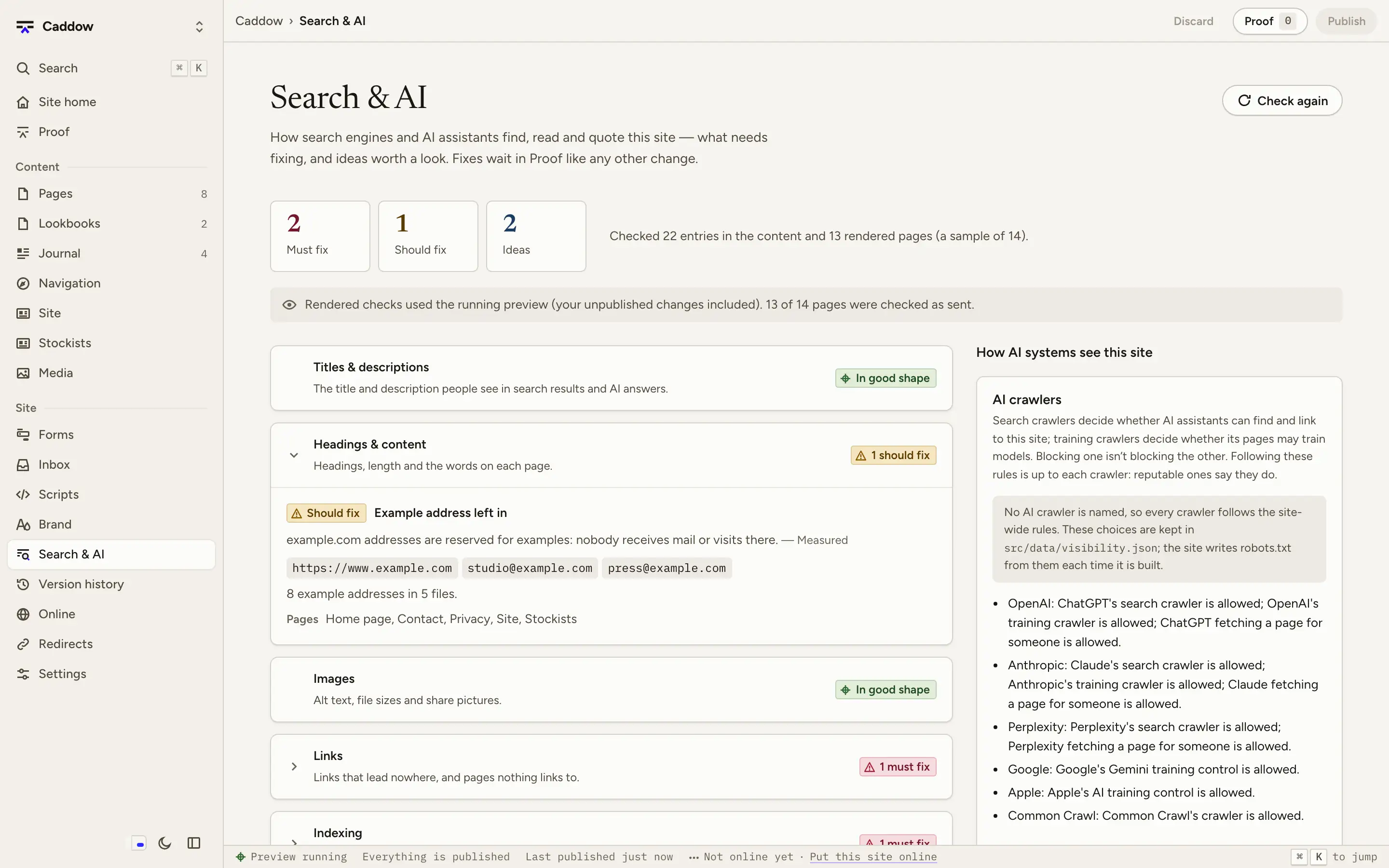
Check how search and AI see the site
Find what search engines and AI assistants trip over, fix it, and choose which AI crawlers may visit.
5 steps
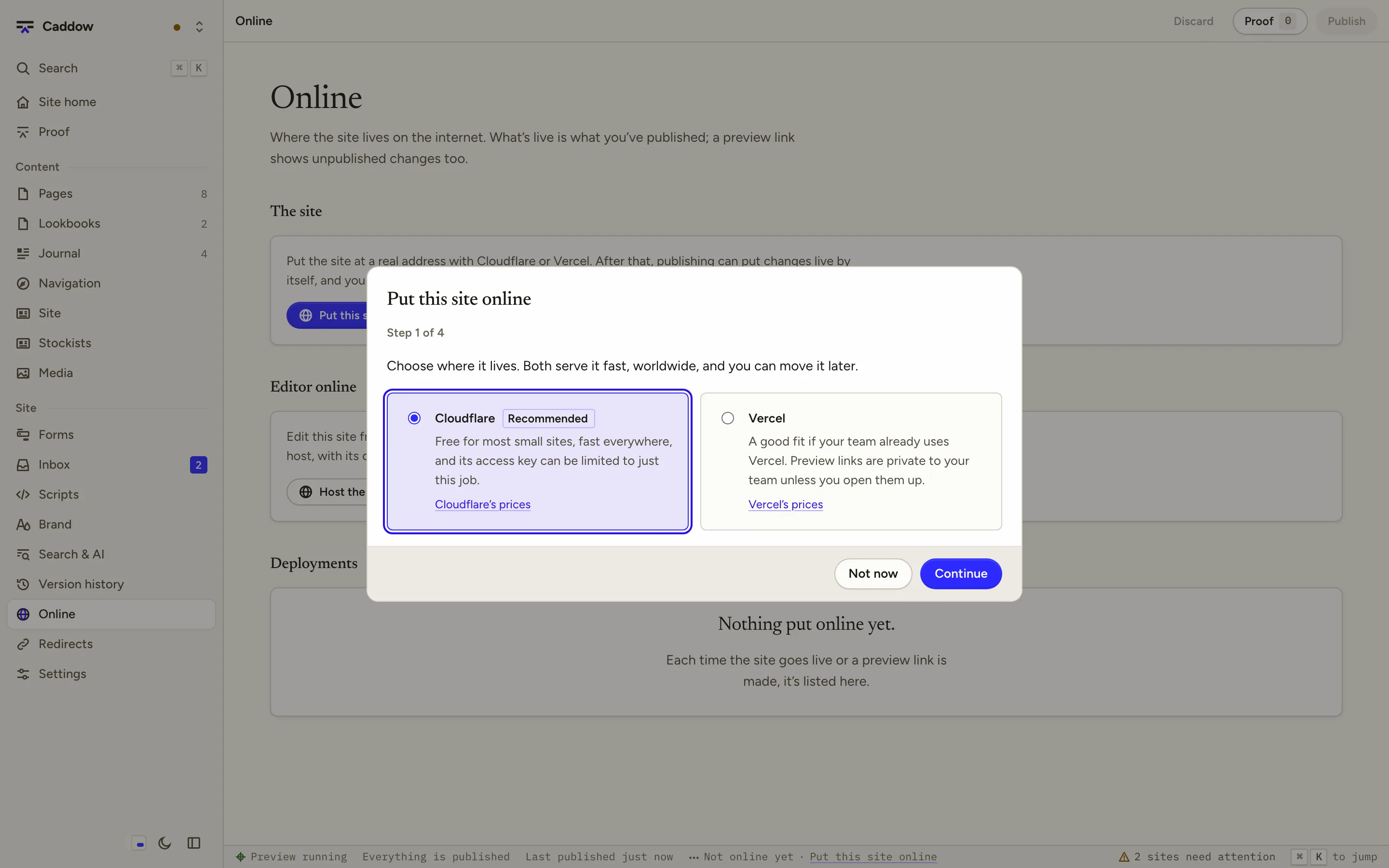
Put the site online
Give the site a real address on Cloudflare, then your own domain.
5 steps
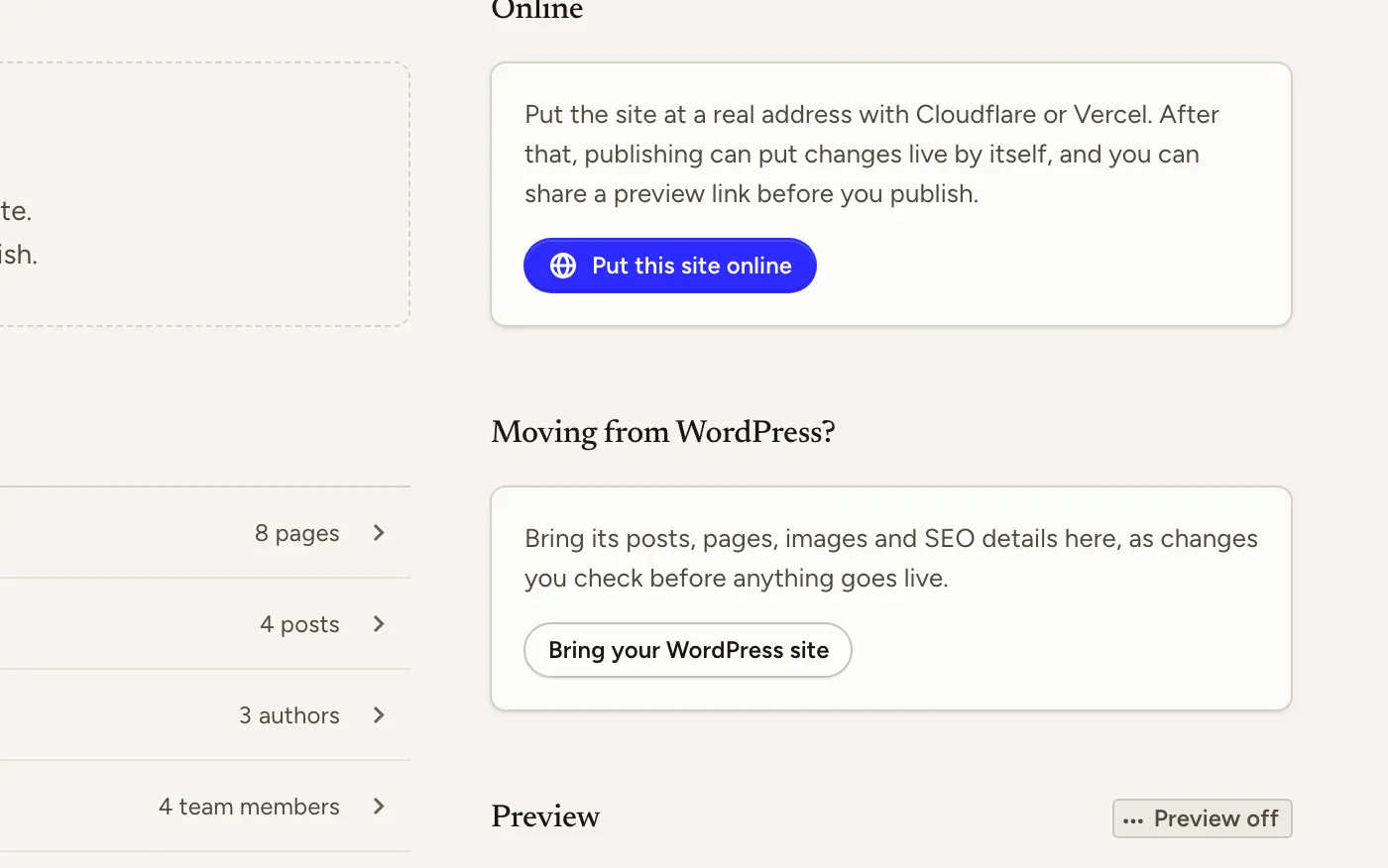
Bring a site over from WordPress
Move a WordPress site's posts, pages and images into this site, checked before anything goes live.
5 steps
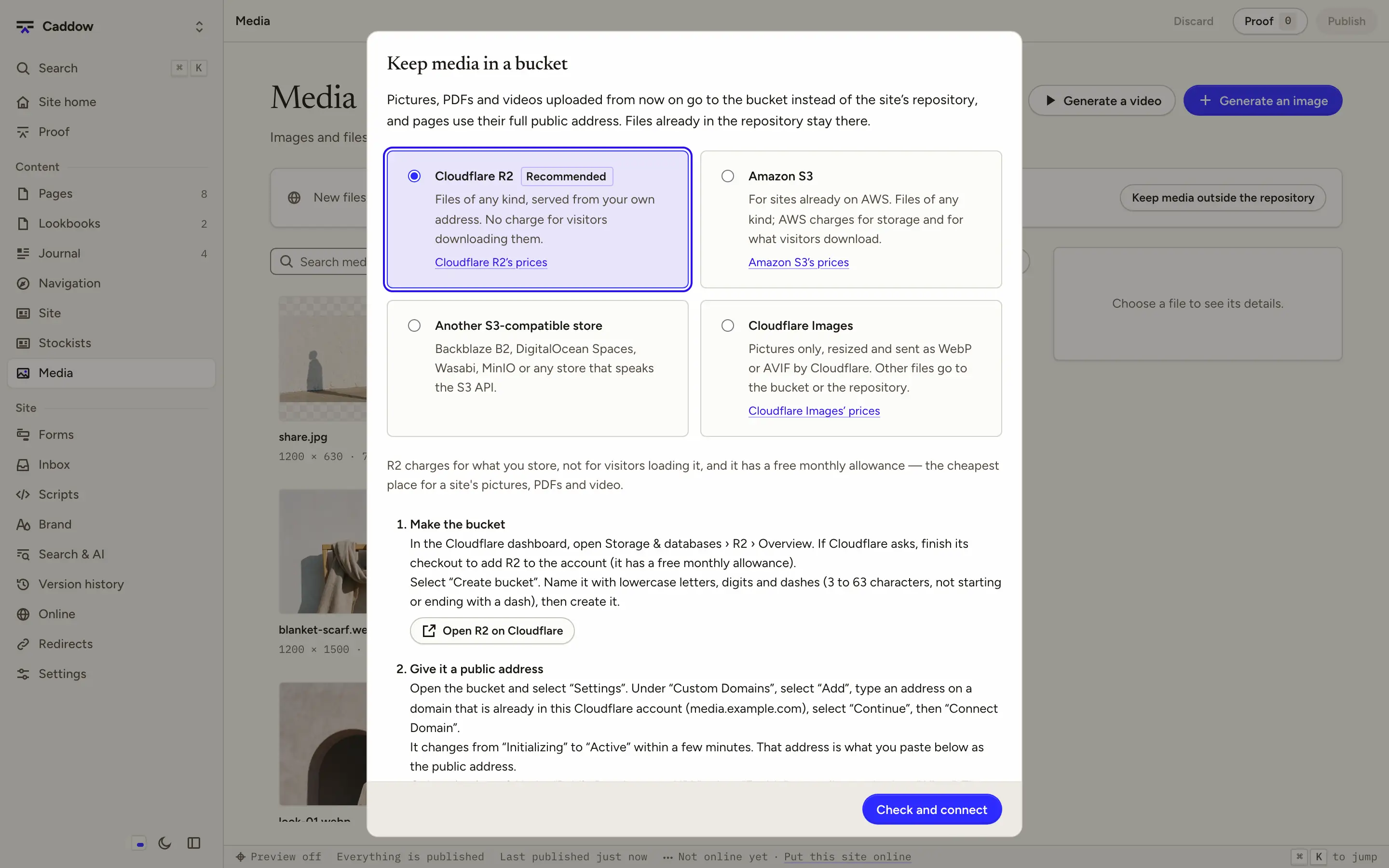
Keep media in a bucket
Keep new pictures, PDFs and videos in a bucket of your own instead of the site's repository, and move the ones already there.
7 steps
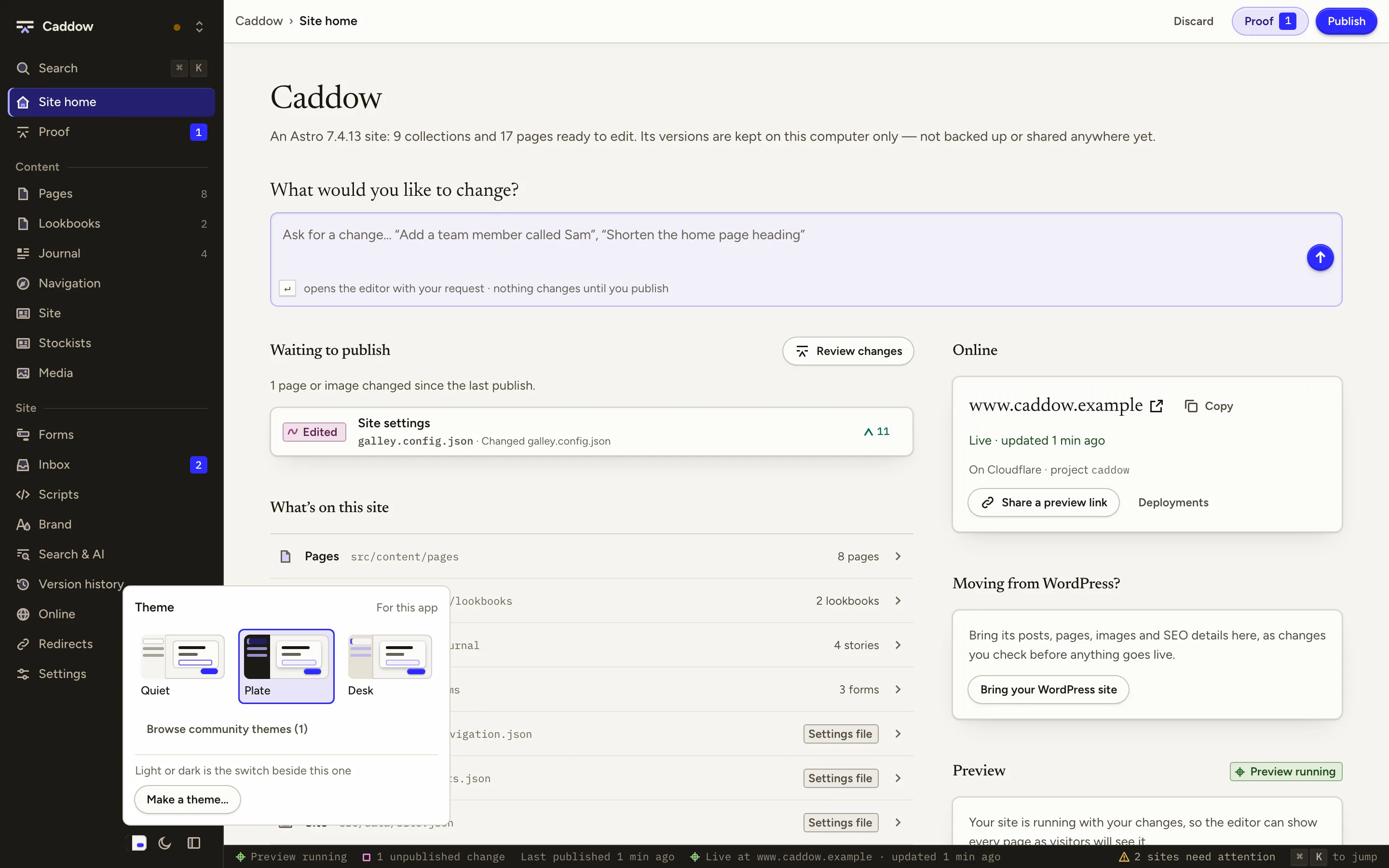
Choose a theme, or make your own
Change how the app looks, in light and dark, and take a theme of your own to another computer.
7 steps
Want to see the whole app first? Take the tour