Make a form and read the answers

Change a form's fields, choose where the answers go, and read them in the Inbox.

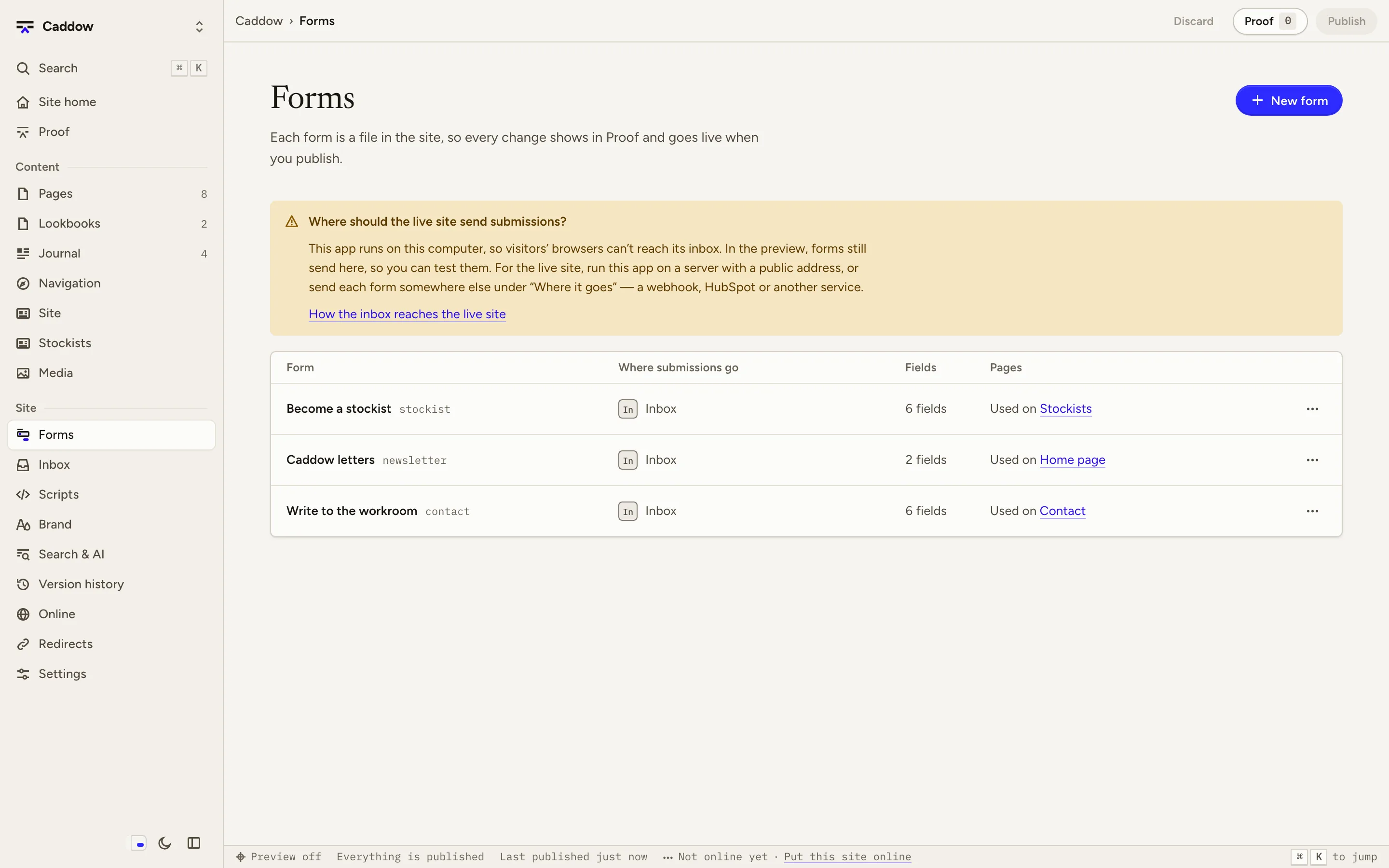
  1. Open Forms in the sidebar and choose a form — here Write to the workroom. New form starts one from Blank, Contact, Newsletter sign-up and more.

    The Forms screen: Become a stockist, Caddow letters and Write to the workroom, each sending to Inbox, with their number of fields; New form at the top right, and a note asking where the live site should send submissions.
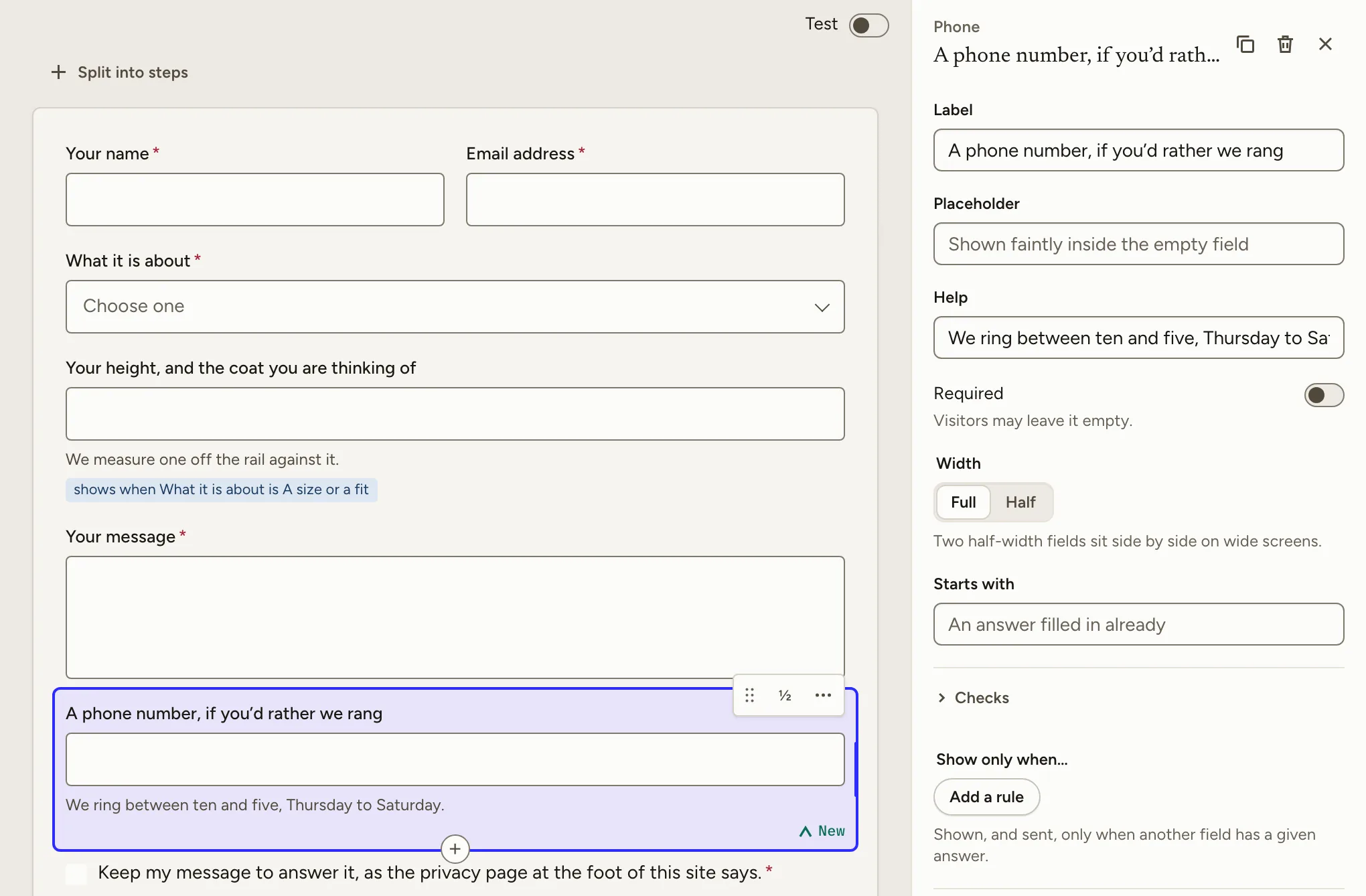
  2. Click a field type on the left — Phone here — to add it below the selected field, then give it a Label and Help on the right.

    You’ll see: The change is saved as you go, and waits in Proof like any other.

    The form builder on Write to the workroom: a new Phone field under Your message, labelled “A phone number, if you’d rather we rang” and marked New; on the right its Label, Placeholder, Help, Required and Width.
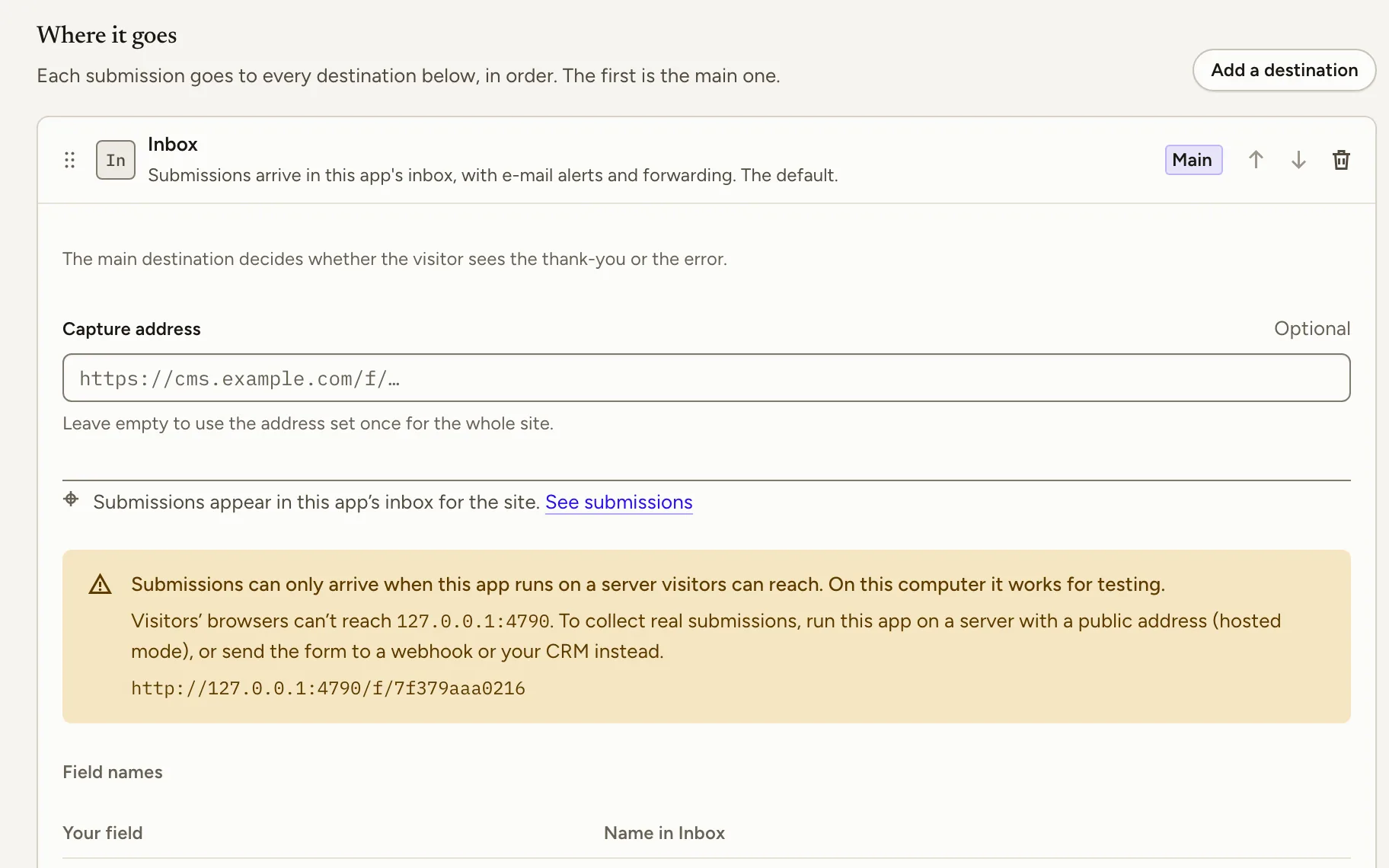
  3. Open Where it goes. Inbox is the first destination; Add a destination sends the answers to HubSpot, Marketo, Salesforce, Pardot, a webhook or the visitor's e-mail program as well.

    The Where it goes tab: Inbox as the main destination, the capture address, Submissions appear in this app's inbox for the site with See submissions, and a note that submissions can only arrive when the app runs on a server visitors can reach.
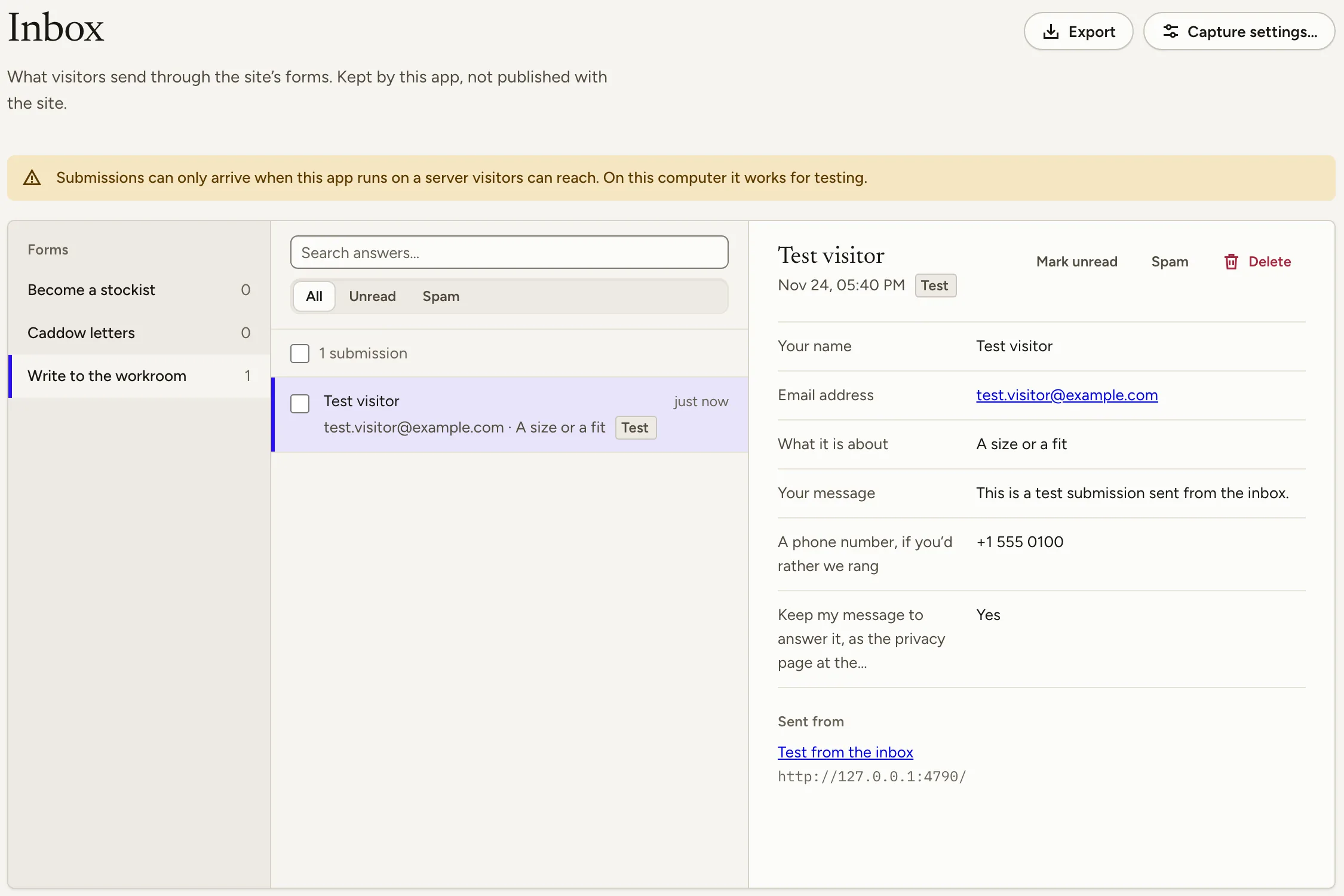
  4. Open Inbox (or See submissions), choose the form and press Send a test submission.

    You’ll see: It goes through the same checks as a visitor's and arrives at the top, marked Test. Choose it to read every answer.
    The Inbox: the forms on the left, one submission from Test visitor marked Test in the middle, and on the right every answer — name, email address, what it is about, message, phone number and consent — with Mark unread, Spam and Delete.