Keep media in a bucket
Keep new pictures, PDFs and videos in a bucket of your own instead of the site's repository, and move the ones already there.
Before you start A Cloudflare R2 or Amazon S3 bucket with a public address, and a key for it.
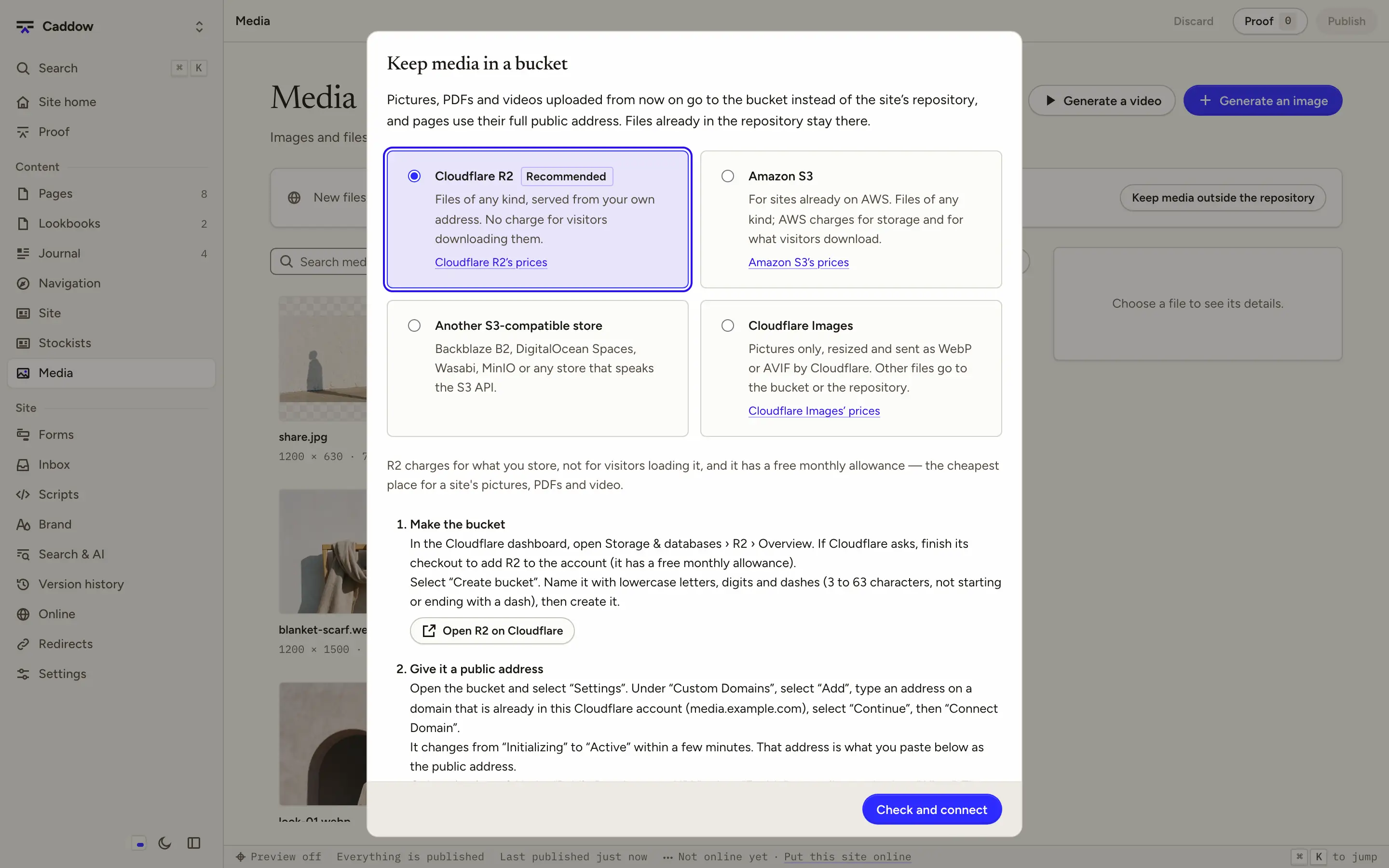
Open Media and press Keep media outside the repository. Choose the kind of bucket — Cloudflare R2 here.
You’ll see: The window lists what to do at the provider: make the bucket, give it a public address, make a key.
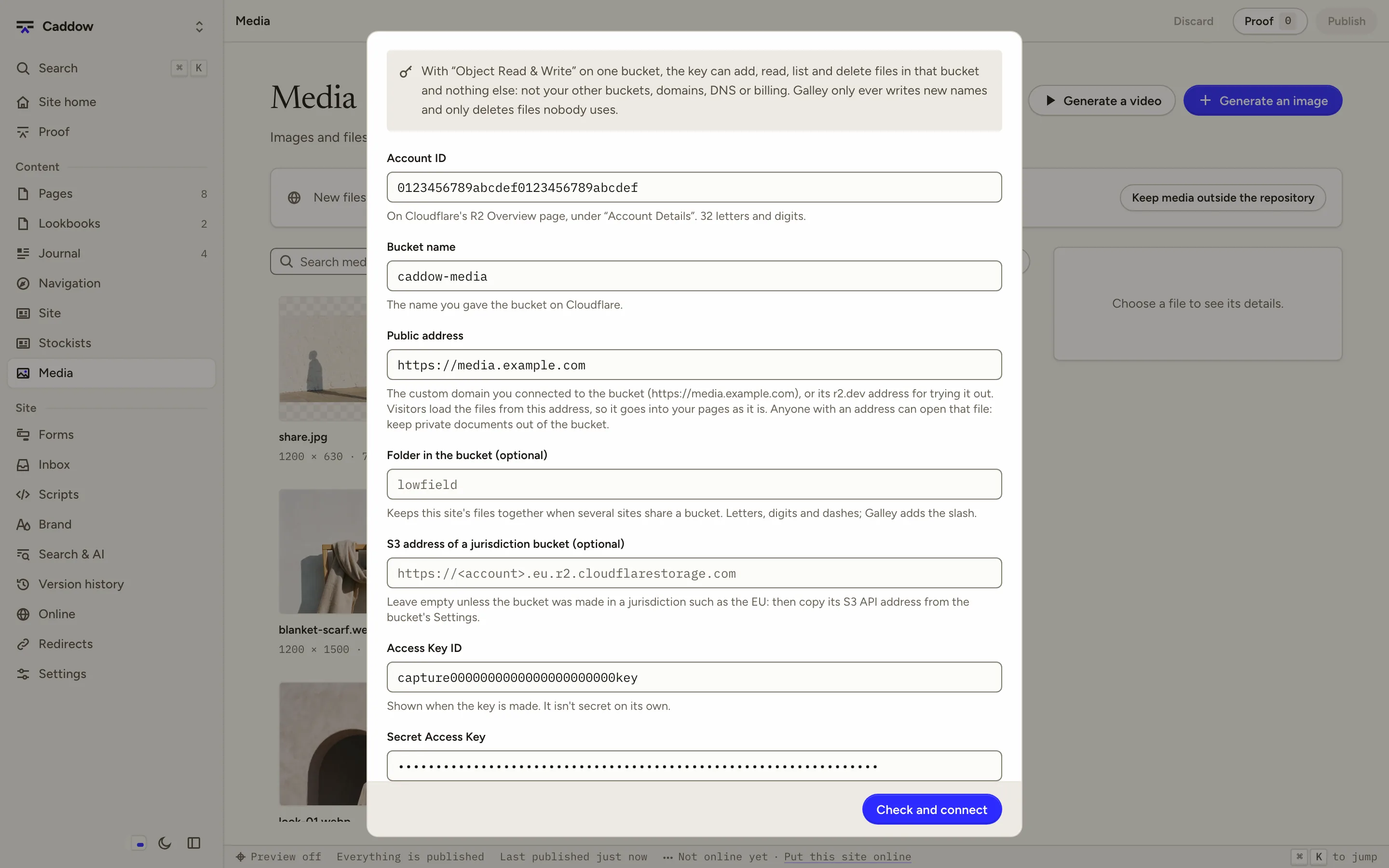
Fill in the Account ID, the Bucket name, its Public address and the key you made, then press Check and connect.
You’ll see: Galley checks for real before it saves: it puts a small test picture in the bucket, reads it back, loads it from the public address and removes it. When a step fails, it says what to change.
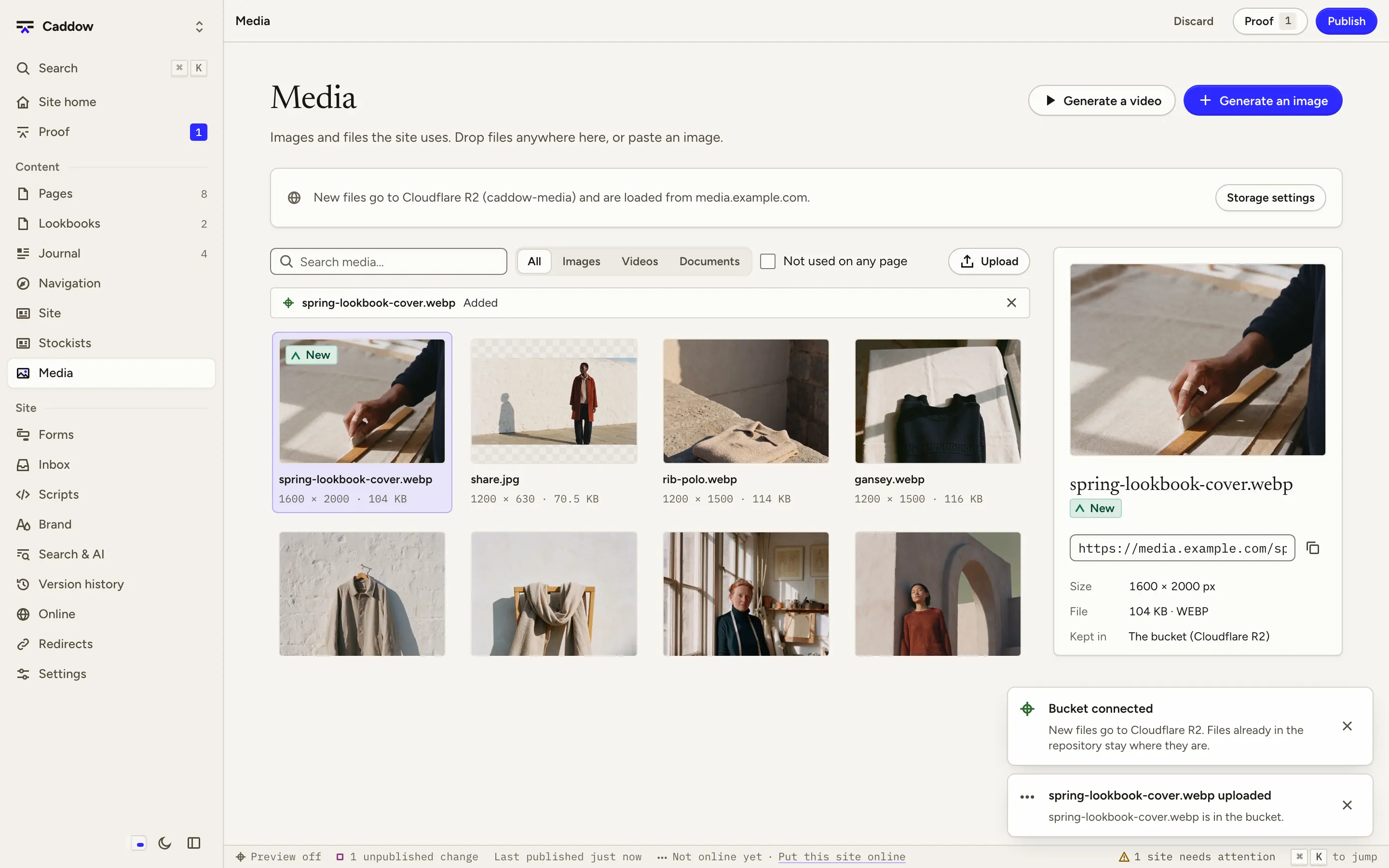
Press Upload, or drop a file anywhere on the screen.
You’ll see: The file goes to the bucket, not the repository, and the message says so. A page that uses it stores its full address.
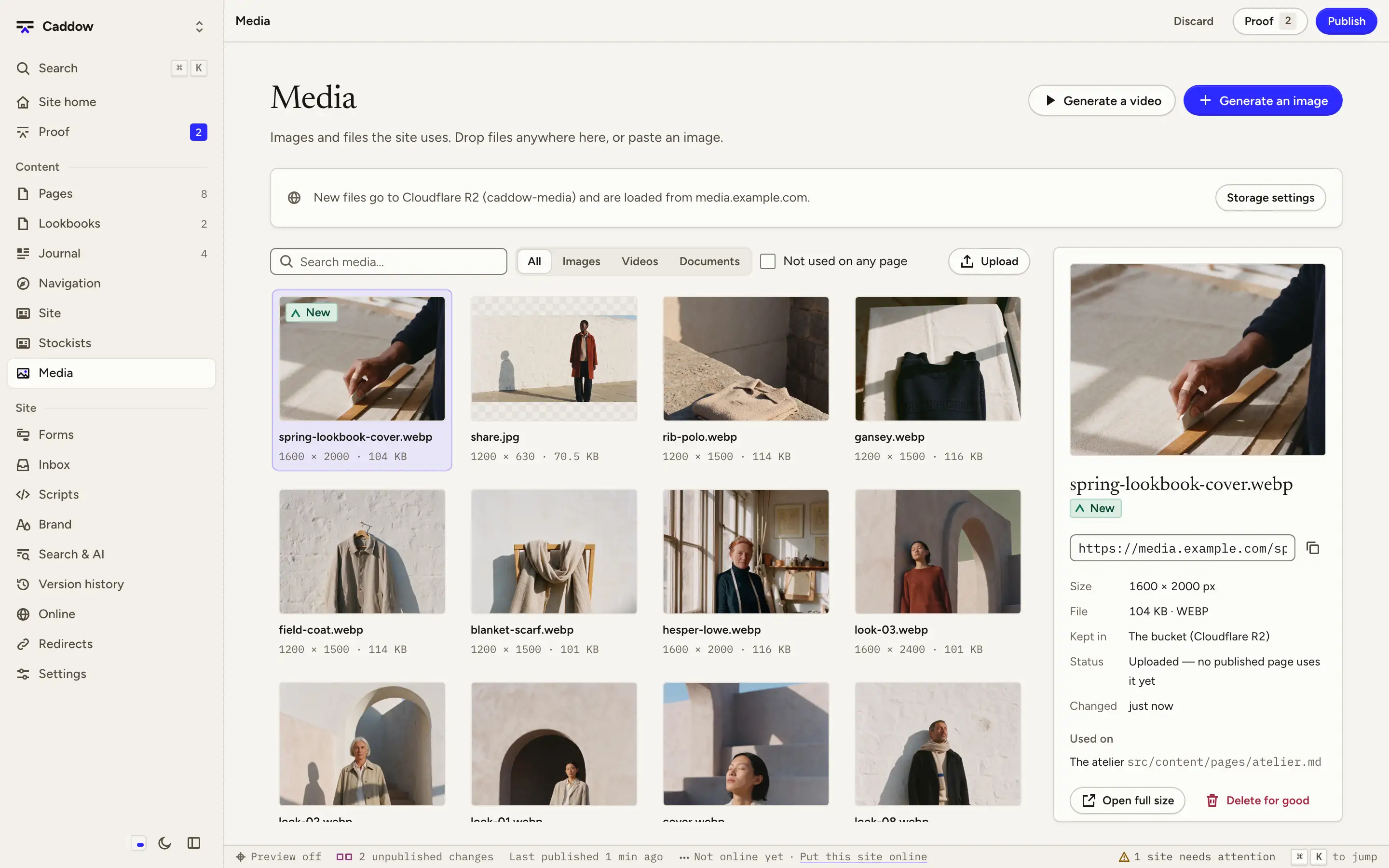
Use the picture on a page as you would any other, then choose it in Media.
You’ll see: Kept in says where the file is. Used on lists every page that uses it, published or not.
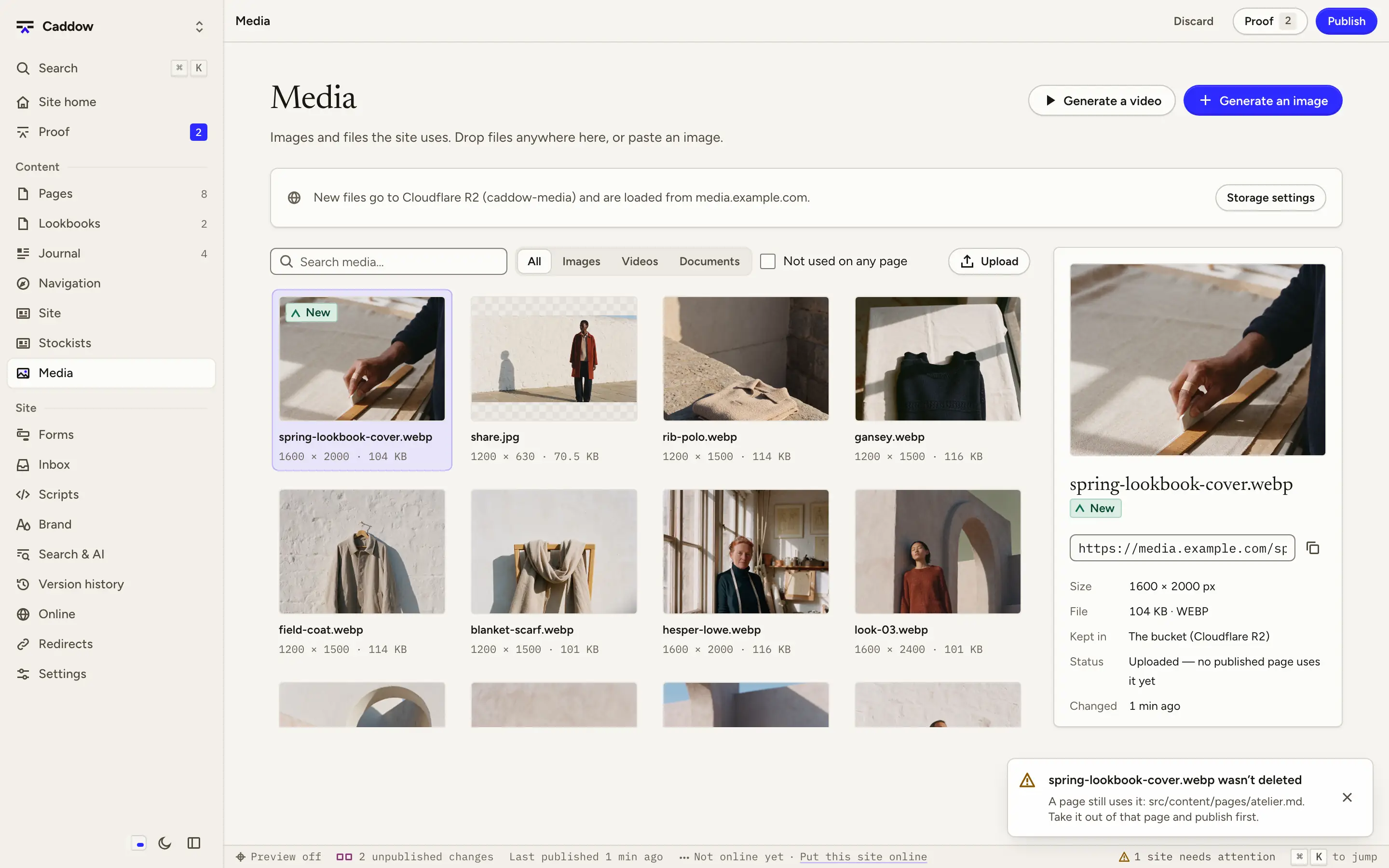
To take a file out of the bucket, press Delete for good, then Delete file.
You’ll see: A file a page still uses is not deleted, and the message names the page. Take it out of the page and publish first.
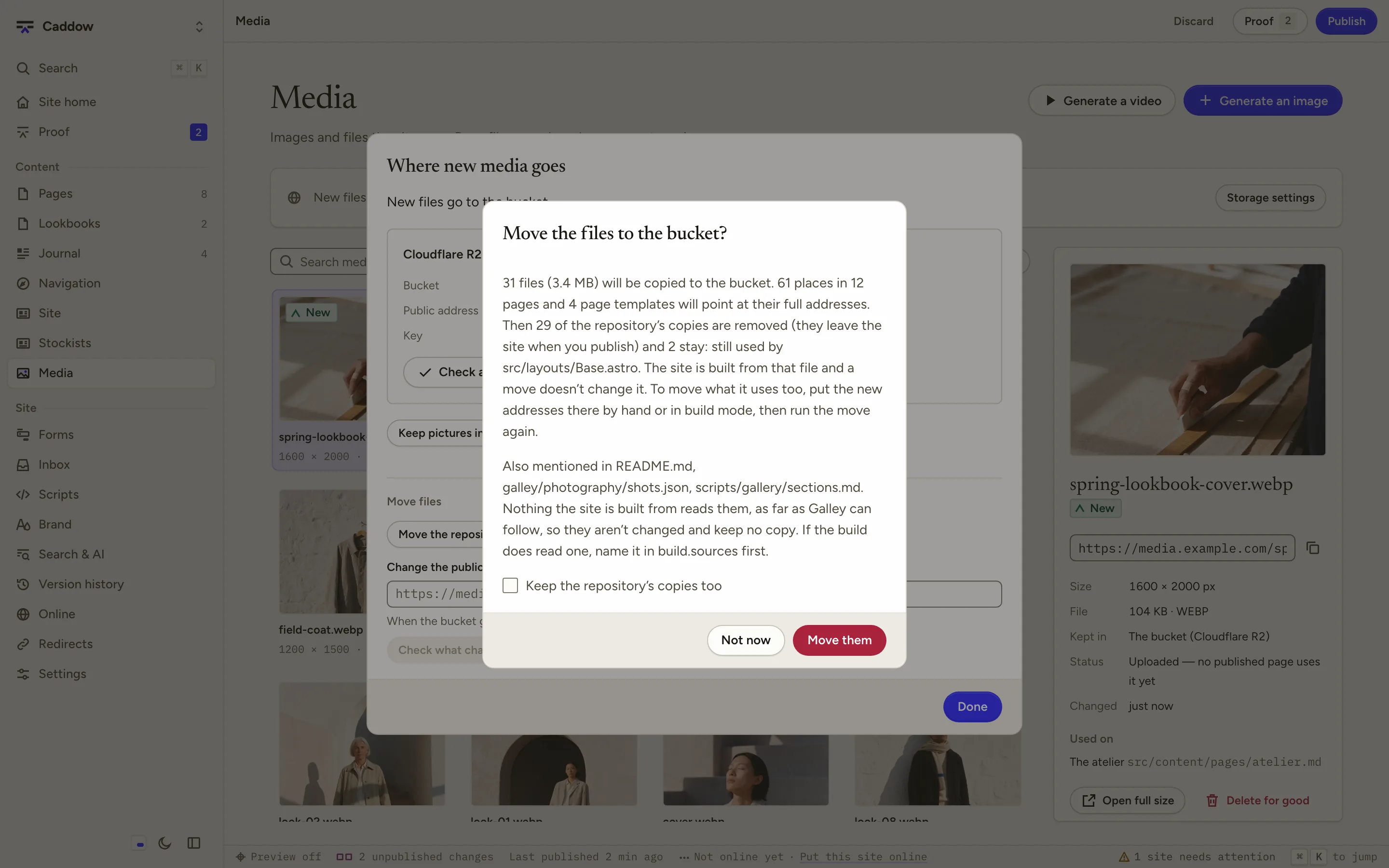
To move the files already in the repository, open Storage settings and press Move the repository’s files to the bucket…. Read the plan, then press Move them.
You’ll see: The plan says what leaves, what stays and why. Pages and page templates will point at the new addresses, and the repository’s copies are removed. A copy stays only while a file the site is built from still uses it and a move doesn’t change that file: the plan names the file and says how to move the rest. Other files that mention a picture, a README for one, are listed under Also mentioned in and left as they are. If your site’s build does read one of them, name it in the site’s settings first, as that line says.
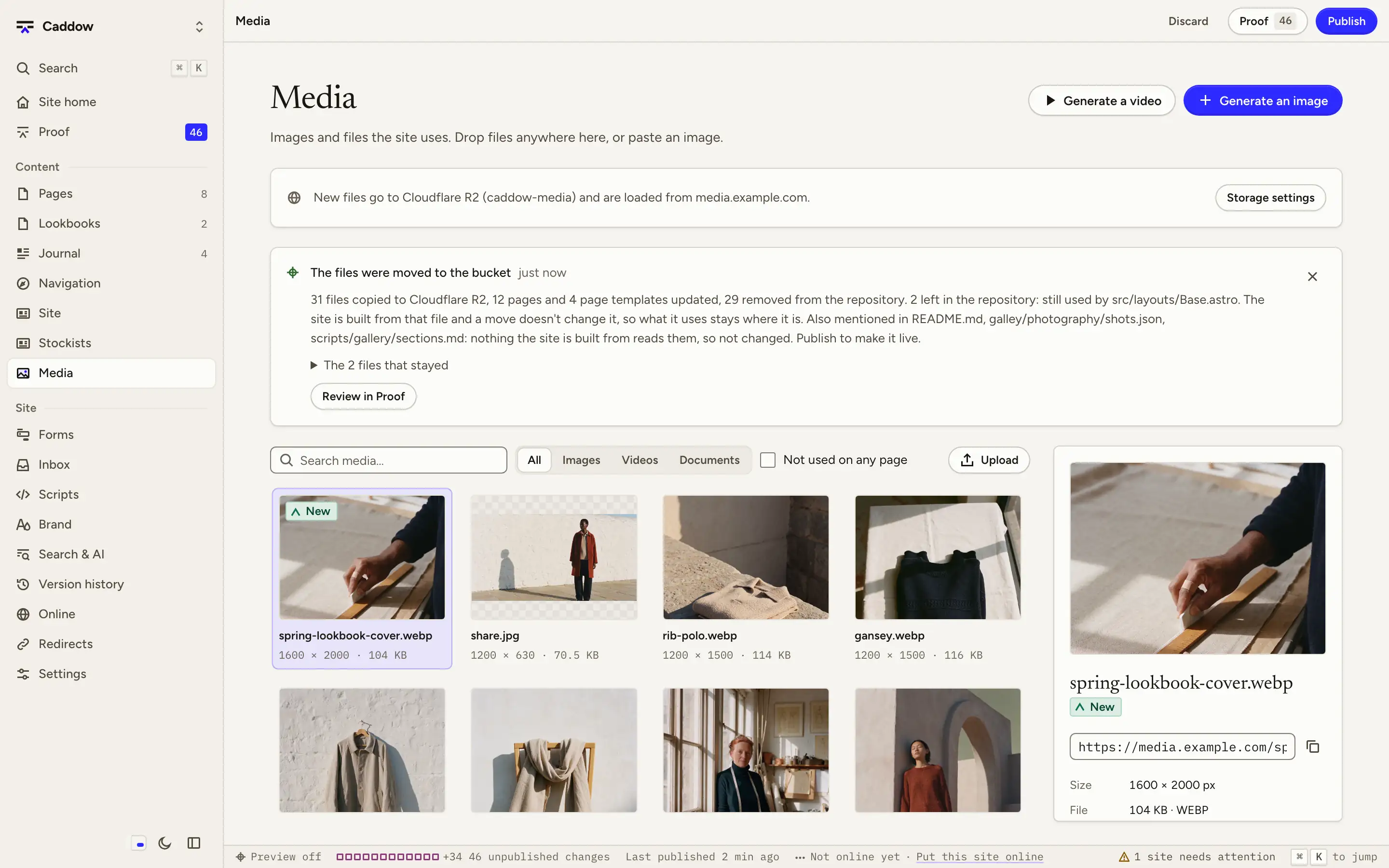
When it has finished, press Review in Proof.
You’ll see: The pages and page templates point at the bucket now and the repository’s copies are gone, all as changes waiting in Proof: publish to make it live. The message says again what stayed and why, and the list under it names each file that stayed with what still uses it.